Google Sheets VS Airtable : A Game of Sheets and Tables
In the so-called proverbial bout of the 'Game of Sheets and Tables,' this aptly named competition makes two no code tools come face-to-face: Google Sheets vs Airtable.
Airtable often gets highlighted in the no code scene, but how great is it when compared with its popular counterpart, Google Sheets, in a no code project scenario? Also, which one gets the job done better as a no code database?
Well, let’s find answers to such questions and see when it comes to Google Sheets vs Airtable, which one is better. So, here is a comprehensive compare-and-contrast of some similarities and differences these two well-known tools in no code have.
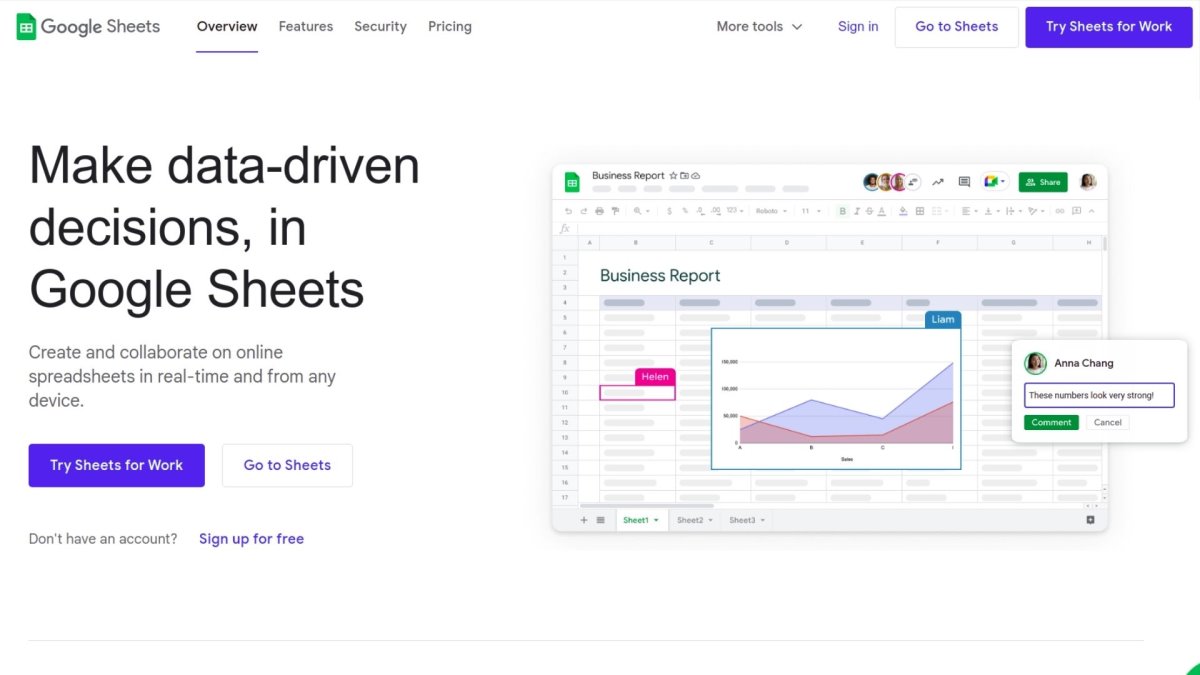
Brief Overview - Google Sheets
- Free web-based spreadsheet application provided by search engine mogul Google, within its Google Drive services
- Available as a ChromeOS desktop application and as an Android, Blackberry, and Window iOS mobile app
- Gives users the ability to edit, organise, and analyse different sorts of information
- Allows collaborations, with multiple users editing and formatting files in real-time
- Any changes made to this spreadsheet are trackable through its built-in revision history
Notable Features
1. Editing
Allows real-time, collaborative spreadsheet editing. Instead of emailing multiple users with one document, a single document can be simultaneously accessed and edited by numerous people. Also, users see all changes made by others, with all changes automatically saved to Google servers. In addition, it also features a sidebar chat, allowing collaborators to engage in discussions while editing real-time and recommended immediately on specific changes. The Revision History allows tracking of any changes made by all collaborators. Editors can review previous edits and regain any unwanted changes to its past versions.
2. Exploring
Has a feature called ‘The Explore,' first introduced in September 2016, and utilises machine learning in bringing extra functionalities. This Google Sheets feature gives multitudes of information based on the added data to the spreadsheet and auto-updates itself based on the selected data. Moreover, with Explore, users gain access to question asking, chart building, data visualisation, pivot table creation, and spreadsheet formatting using numerous colours. The sidebar has a box question-and-answer exchange. Scroll down more in the Explore panel - a suggested graphs list representative of the entered data in the spreadsheet lets you choose among pivot tables, bar, or pie charts.
3. Offline Editing
Supports users in editing spreadsheets offline, whether using a desktop or a mobile app. Desktop users need a Chrome browser with an installed Chrome extension can "Google Docs Offline," enabling offline editing for all Google applications. Also, on the other hand, Mobile users need to download the Google Sheets mobile app when using Android and iOS – operating systems that support offline editing.
4. Supported File Formats
Supports different spreadsheet file types and formats. Open, edit, save, or export these formats from other spreadsheets and document files directly into Google Sheets. Also, Google Sheets can view and convert the following formats: .xlsx, .xls, .xlsm, .xlt, .xltx, .xltxm, .ods, .csv, and. tsv.
5. Google Product Integration
Integrates with other products from Google, including Google Translate, Google Form, Google Drawings, and Google Finance.
How to Use Google Sheets?
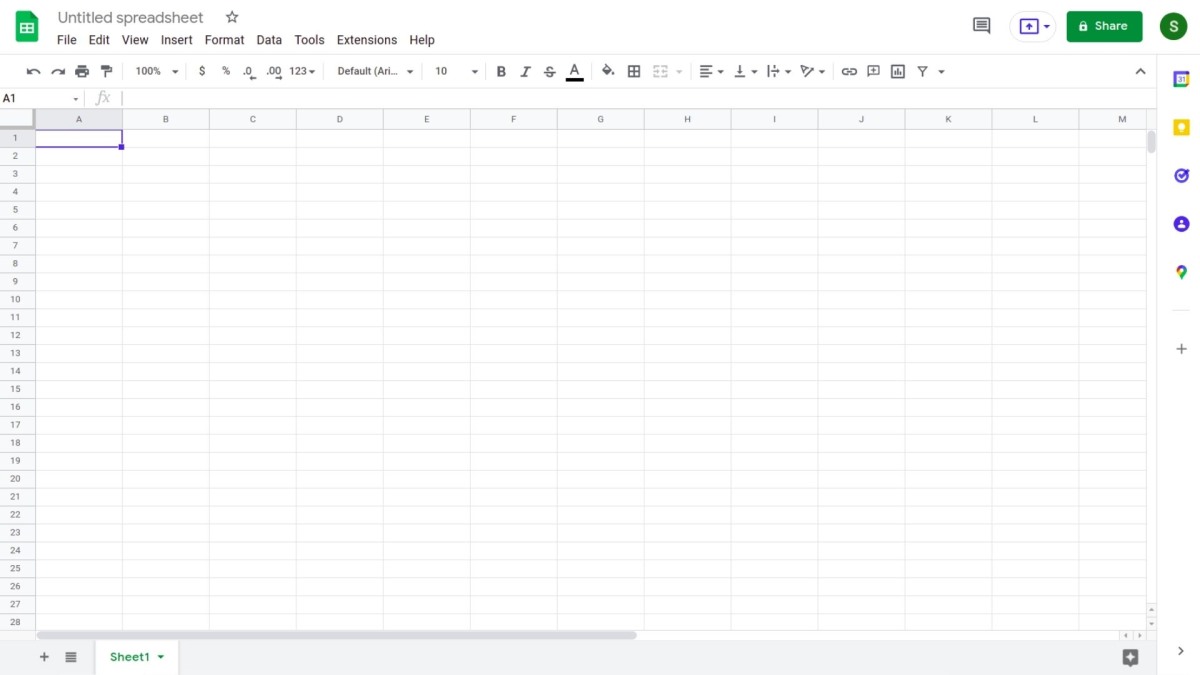
Google Sheets can be accessed using a Chrome web browser or through the Android or iOS app of the same name as a free-to-use application. Users get started with free Google accounts, then create new Google Excel Sheets using the following steps:
- Google Drive Dashboard
- Click “New” (top left corner)
- Select Google Sheets
- Menu Bar (spreadsheet window)
- Go to File
- Then New (creates a blank spreadsheet)
- For renaming spreadsheets - Click “Untitled Spreadsheet” (top left corner) type in your preferred name.
Common Terms
- Cell – one data-point.
- Columns – are cells that vertically arrange and run down from the sheet’s top portion.
- Row – cells that horizontally arrange and run across from the sheet’s left side.
- Range – multiple cells selection running across columns, rows, or a combination of the two.
- Function – a built-in feature used in calculating values and manipulating data.
- Formula - is a combination of cells, columns, rows, functions, and ranges used to obtain specific results.
- Worksheets – are sets of columns and rows that comprise a spreadsheet.
- Spreadsheet - is a whole document containing Google Excel sheets, with a single spreadsheet having multiple worksheets.
Brief Overview - Airtable
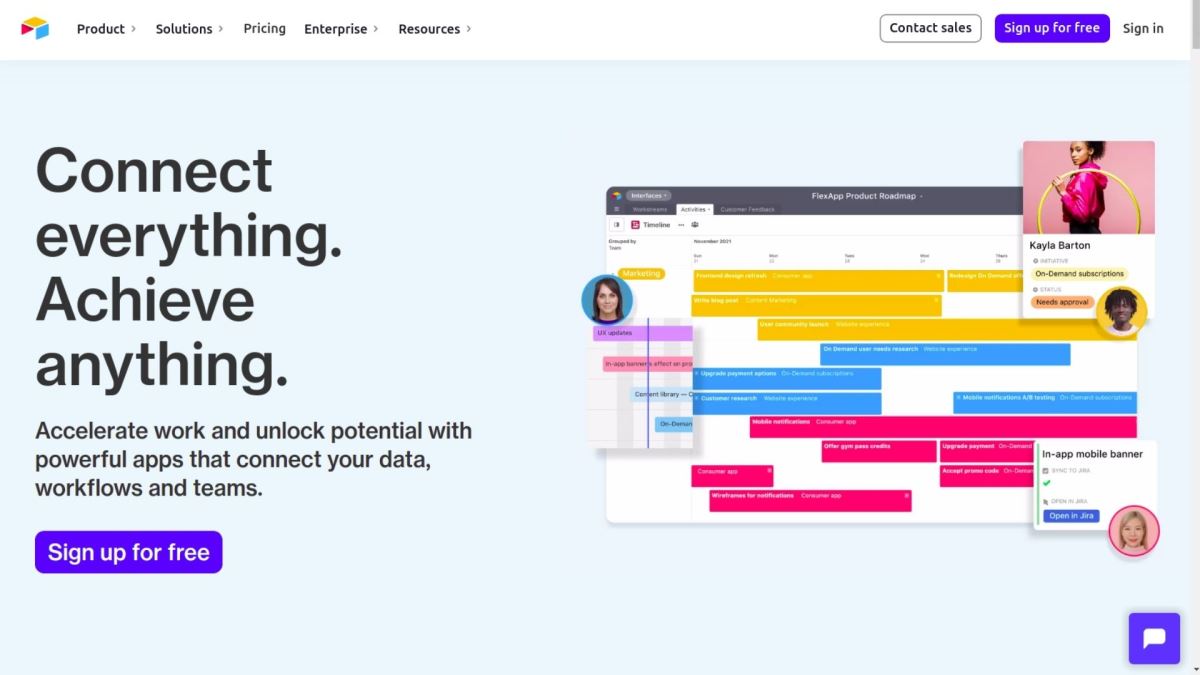
- Modern spreadsheet tool possessing database functionalities
- Simple, user-friendly, and lets anyone create databases quickly
- Combines the best of both spreadsheet and database worlds
- Makes interaction with your data easier by enabling your data's programmatic management
The Basics
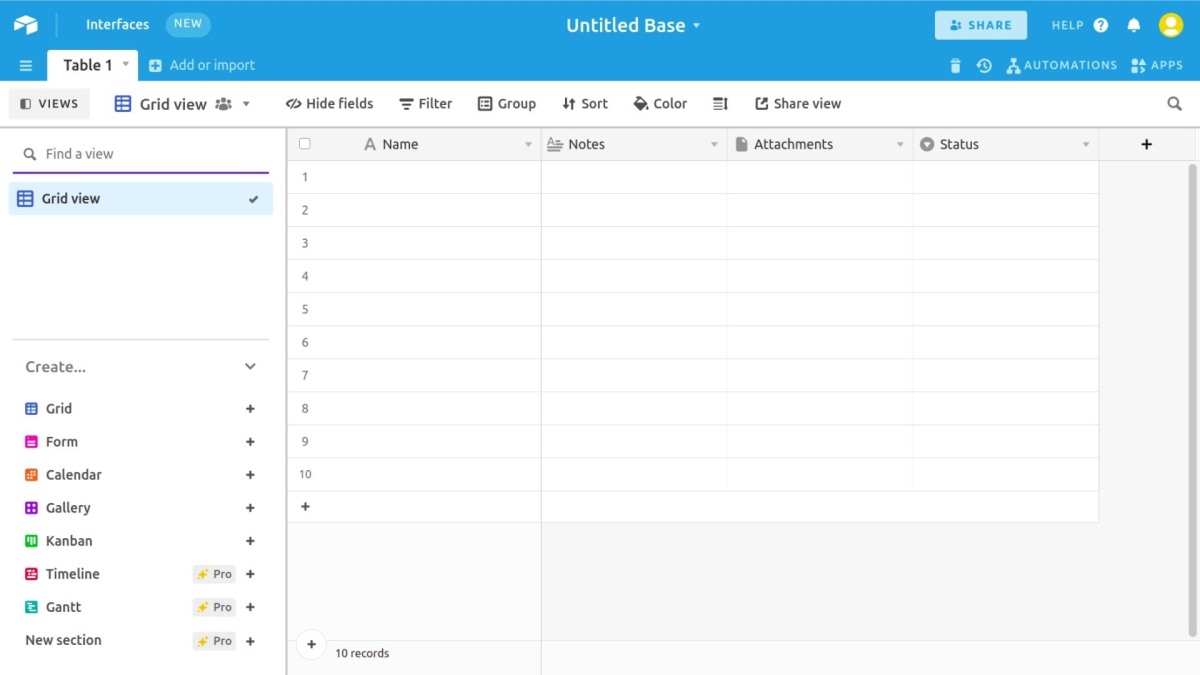
1. Bases
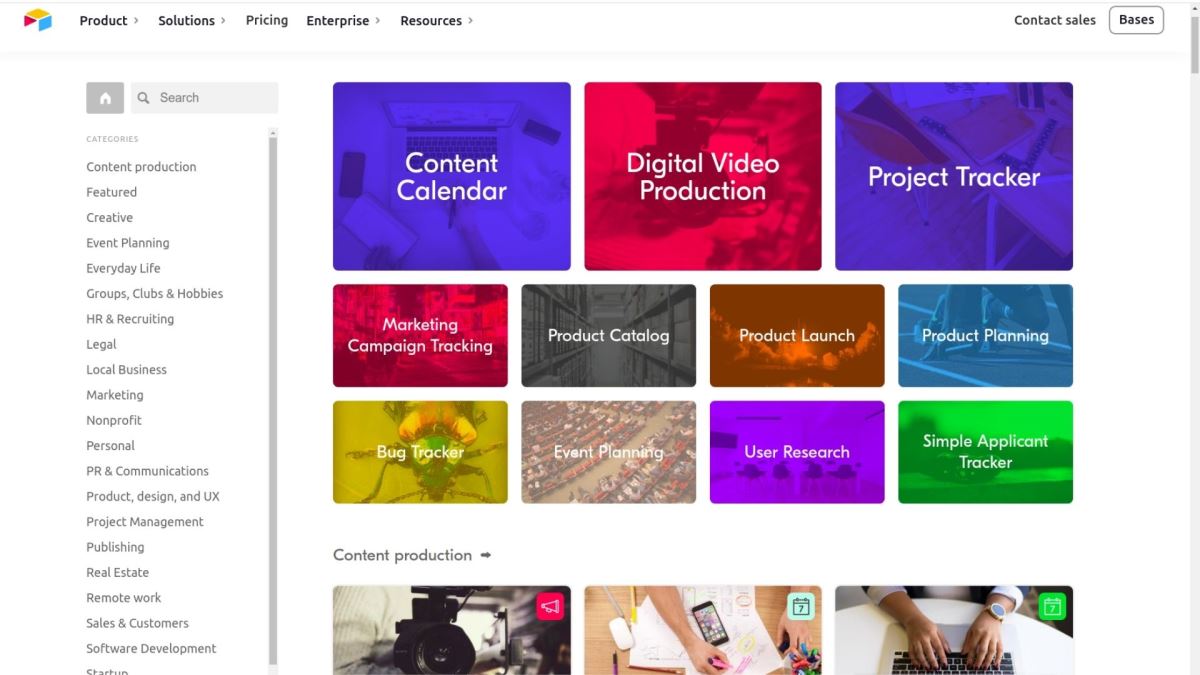
Collections of tables, either already existing or built from scratch. Bases resemble projects, wherein every time you start new projects, you'll also create new bases. They are like computer folders that hold Excel files. Examples of existing Airtable templates are Content Calendar, Event Planning, and Project Tracker, to name a few.
2. Workspaces
Collections of Airtable Bases. While bases are holder folders of Excel files, workspaces function as hard drives that host these folders.
3. Tables
A location where stored data resides. Similar to spreadsheets, these tables contain columns, rows, and fields.
4. Views
A powerful feature that lets you configure your data viewing in a table. Grid views are perhaps the most familiar since they are similar to spreadsheets. Calendar views become useful for dates-possessing Tables such as deadlines. And Gantt views can be beneficial for items with start and end dates, presented and shown in timelines.
5. Fields
Cells in spreadsheets where individual pieces of data are held. However, Fields can be more than text holders. With Airtable’s 29 field types, such as Single-line text, Long text, Attachment, and Date, explore limitless options with the fields you create and have in your spreadsheets.
6. Records
Much like in spreadsheets and databases, these are the rows you use in Airtable.
7. Apps
One of Airtable's more unique features, these apps can extend the significant functionality Airtable provides to its users. Much like App stores inside our phones, Airtable also has apps that have beneficial functions that contribute to its overall effectiveness as a database.
8. Automation
Are like apps that are one of the most powerful features Airtable possesses. As its name suggests, they help extend what's possible with Airtable by allowing the automation of tasks using the data already given. Airtable can help take action for you depending on different triggers like when new records are added to views or when such history gets changed. Automation help save you time by automating repetitive and manual tasks, reducing possible margins of error quite significantly.
How to Use Airtable?
Airtable has become a powerhouse in the no code tool scene for many businesses because of all of its features. Here are some common Airtable uses you can try yourself:
- Bug tracker
- Content calendar
- Event planning
- Job hunting
- Marketing campaign management
- Product catalogue
- Product launch
- Project management
- User research
With endless possibilities, Airtable dramatically depends on the needs of each user. Getting the best view of all the possibilities you can achieve and accomplish with Airtable depends on your imagination.
How to Integrate Airtable?
Synchronise Airtable with some of the most popular apps available today. Automate repetitive tasks using its automation feature, helping you to do:
- Email sending with Airtable
- Google Calendar syncing with Airtable
- Records updating depending on the changes that occurred in other applications
- Message sending to your Slack or Microsoft Teams
- Tweets scheduling
- Payments registration with Stripe
- Files management using Dropbox or Box
Integrate all possible apps as much as you can to secure the effectiveness of the processes and outcome you want to have as you utilise Airtable to your business' advantage.
Own Distinctions: Google Sheets VS Airtable
In our proverbial game of sheets and tables, here are five primary differences you need to know between Google Sheets and Airtable:
Airtable
- Its logo
- The name ‘Airtable’
- Its Interactive Database Plus
- Visuals
- The complexity of its features
- Its limited integrations with Zapier
- All Free and Paid
Google Sheets
- Its logo
- The term ‘Google Sheets’
- It is database-centric
- Very Functional
- Super simple
- Its robust integrations with
- Free of charge
With another no code tool, Zapier, as the other database to be used in terms of integration, the other two that are in the hot seat, a whole lot of additional functionalities start to piece all things together.
With this being said, Google Sheets can be a go-to in holding data since it works well with Zapier. Meanwhile, Airtable becomes a reminder that there are a lot of all-in-one tools such as Notion and Coda. Although Airtable centres around a spreadsheet that has withstood the tests of time, tried-and-true spreadsheet tables by nature, they’re genuinely jam-packed with a whole lot more.
Let the Games Begin!
“Airtable is not just a database” Vs “Google Sheets is fully Database-Centric”
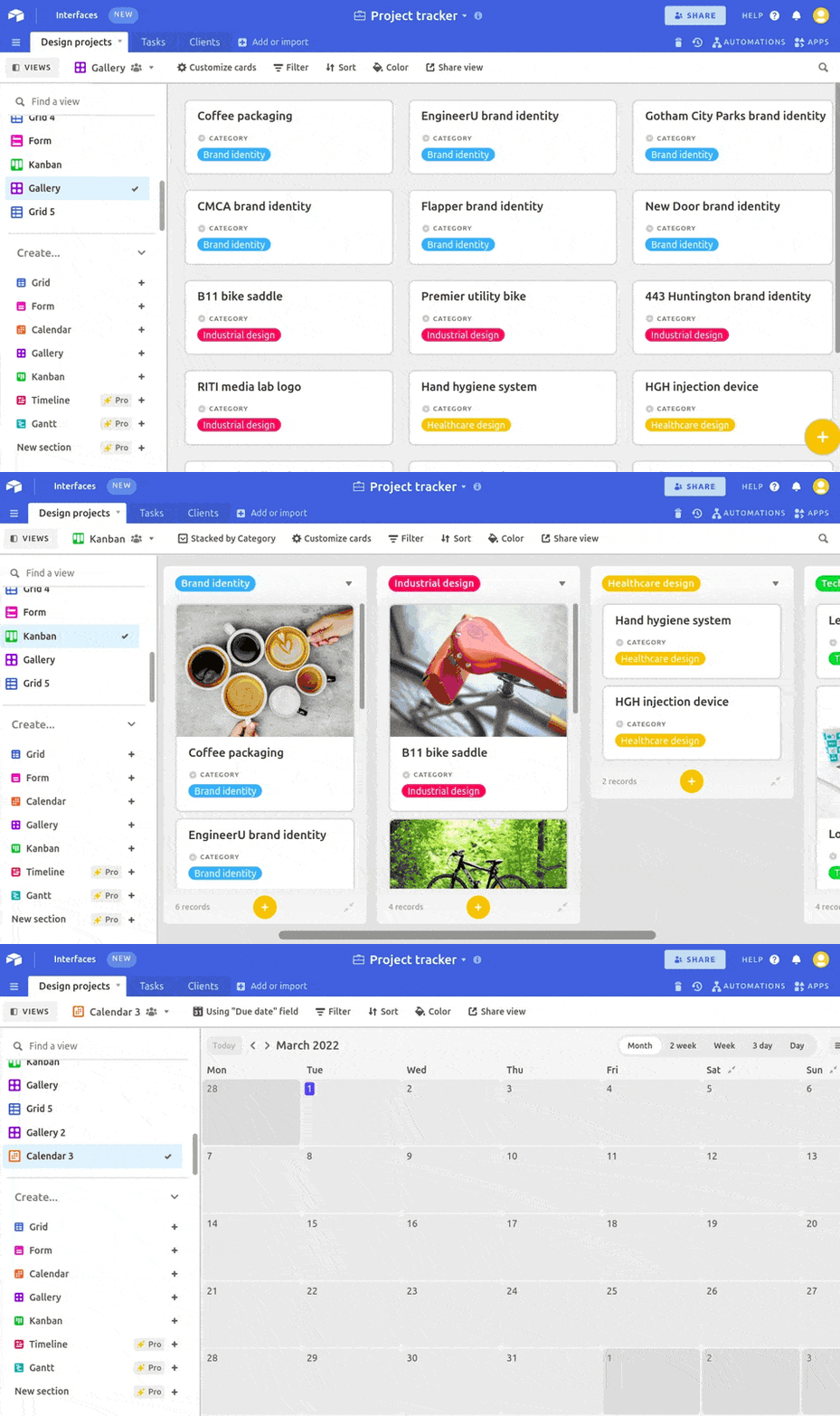
Using basic spreadsheet layouts, Airtable has features called Tables with Rows or Records, Cells, and Columns. However, Airtable can help you easily switch the display of data using the feature of “Views” that allows you to display data in different form, such as Calendar, Kanban board (e.g. Trello), Gallery, etc.
On the contrary, Google Sheets are quite spreadsheet-focused. When you think about potential no code projects, that need for interaction between you and your data in so many ways becomes possible using Airtable. But, if you need a database for data storage, then Google Sheets is your best option.
Most users claim that Airtable works better over Google Sheets because the interaction of the data with their users on Airtable is more flexible than Google Sheets. This reality makes perfect sense when building is very complicated since there’s a need to ensure that data can be viewed and manipulated easily.
“Airtable is Visual” Vs “Google Sheets is Functional”
Teams of those who fear multitude rows of data resort to Airtable as their safest bet in dealing with this mayhem. But when the job needs to be done seamlessly, Google Sheets is the better option between these two.
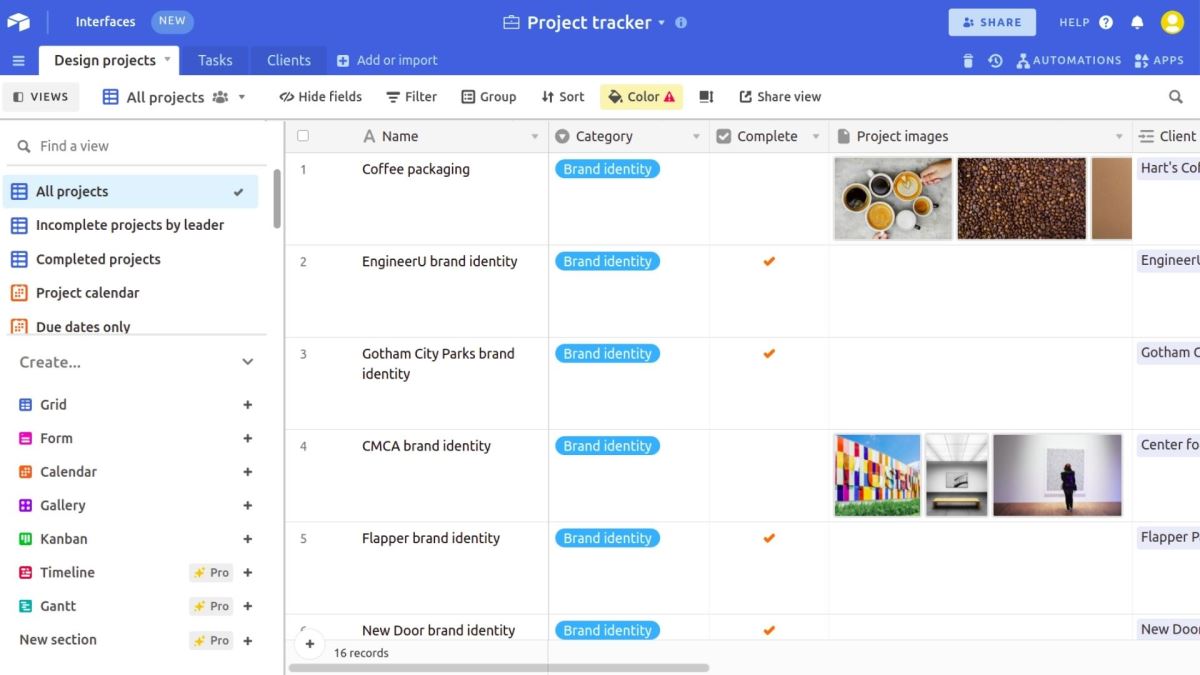
Realise that visual and functional are very vague terms, especially in categorising no code tools in general, let alone Google Sheets and Airtable. However, many of those out there still need things looking neat and pretty at all times. We get it. The probable better route to scour off and explore is gearing towards Airtable, especially if you’re that visually inclined.
“Airtable is Little Complex” Vs “Google Sheets is Quite Simple”
With its many different options, views, colours, built-in automation, etc., Airtable tends to naturally be seen as the more complex one than Google Sheets. But on a lighter note - there’s always a steep yet achievable learning curve.
Additionally, Airtable makes relational linking relatively easier, meaning that having columns that point to some other tables is very much possible. On the other hand, Google Sheets is focused on workable formulas, making it much more difficult to link data you want.
Some Other Factors
Airtable VS Google Sheets: Zapier Integrations
As an example, earlier, Zapier is a no code tool that usually gets paired with these two no code tools in question. With this fact, Google Sheets is the much clearer winner between the two. Using together with Zapier, many more possibilities become more achievable with Google Sheets than when paired with Airtable.
And as of now, Google Sheets provides 18 types of actions, triggers, or searches easily paired in Zapier’s ‘Zaps’ that can automate workflows with other apps. Apps you can’t automate with Google Sheets are very minimal overall.
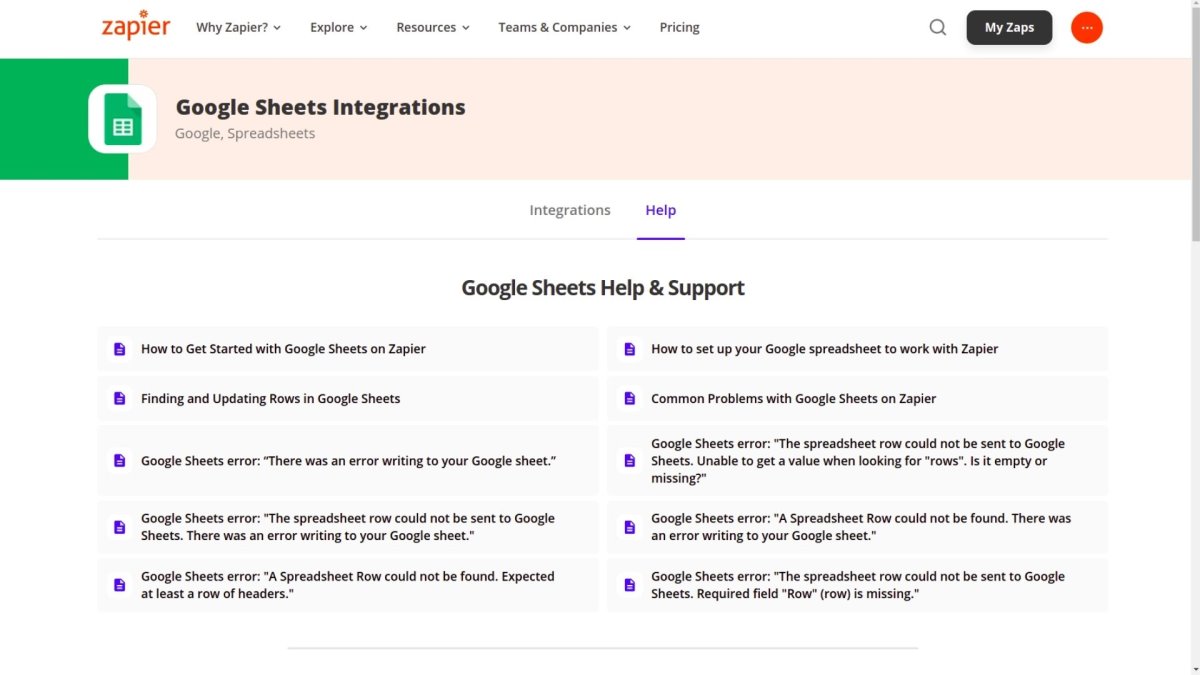
But with Airtable, you become very limited in using Zapier. One massive reason behind this restriction is that Airtable owns native integrations that usually compete with Zapier. Another one is that Airtable’s API is not the most flexible compared to Google Sheets. Currently, Airtable has only six (6) actions, triggers, or searches doable in Zapier.
Templates
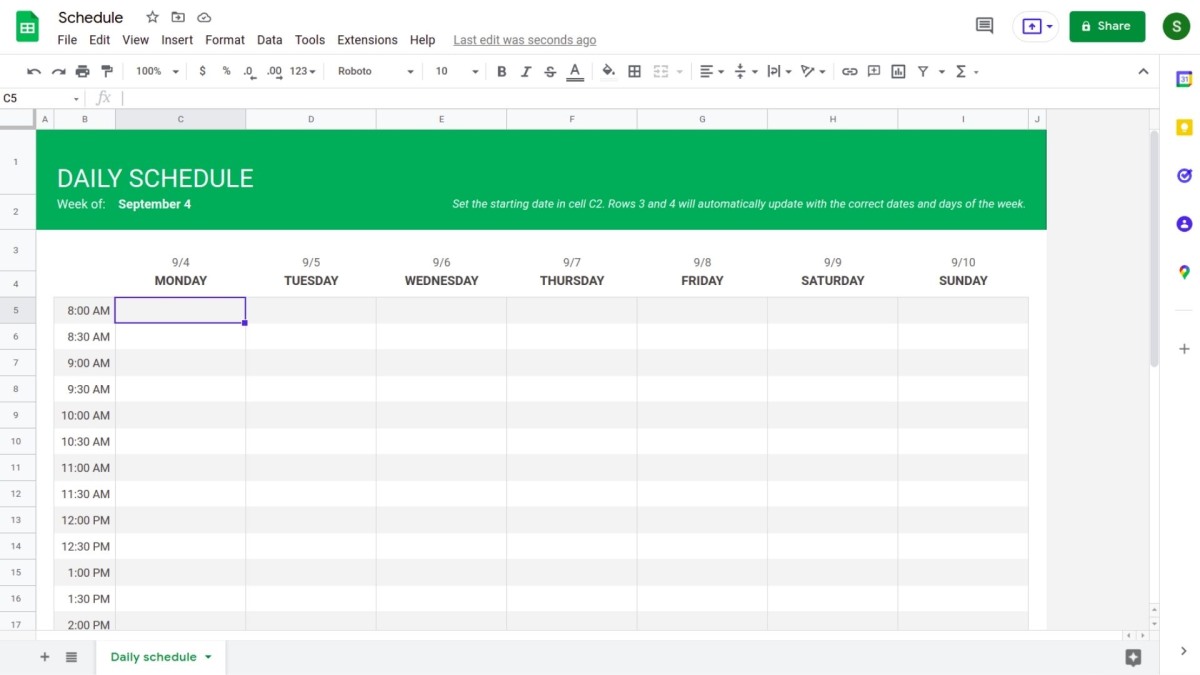
Both Google Sheets and Airtable provide users with different templates. As Google Sheets is free for the users with Gmail accounts, templates provided by Google Sheets are also free.
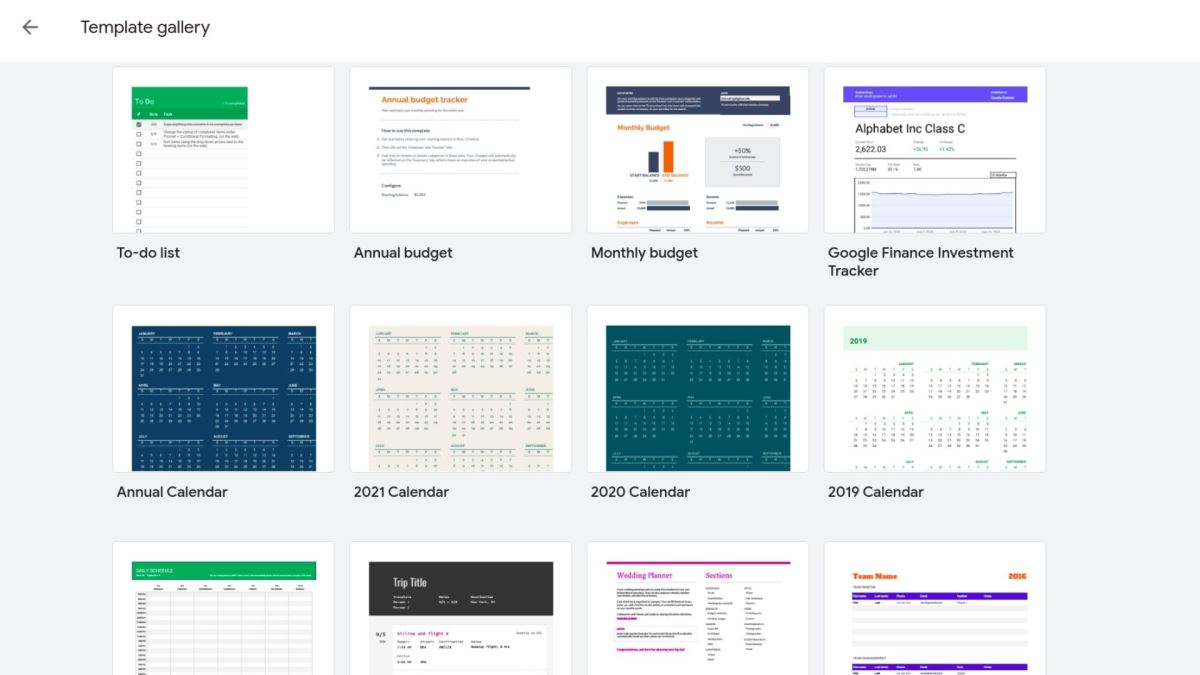
However, Google Sheets’ templates are limited in comparison with Airtable. In fact Airtable offers a great variety of templates targeting different business needs on the basis of teams and use cases. Under the free plan, you can use several free templates. However, not all templates provided by Airtable are free.
The Cost
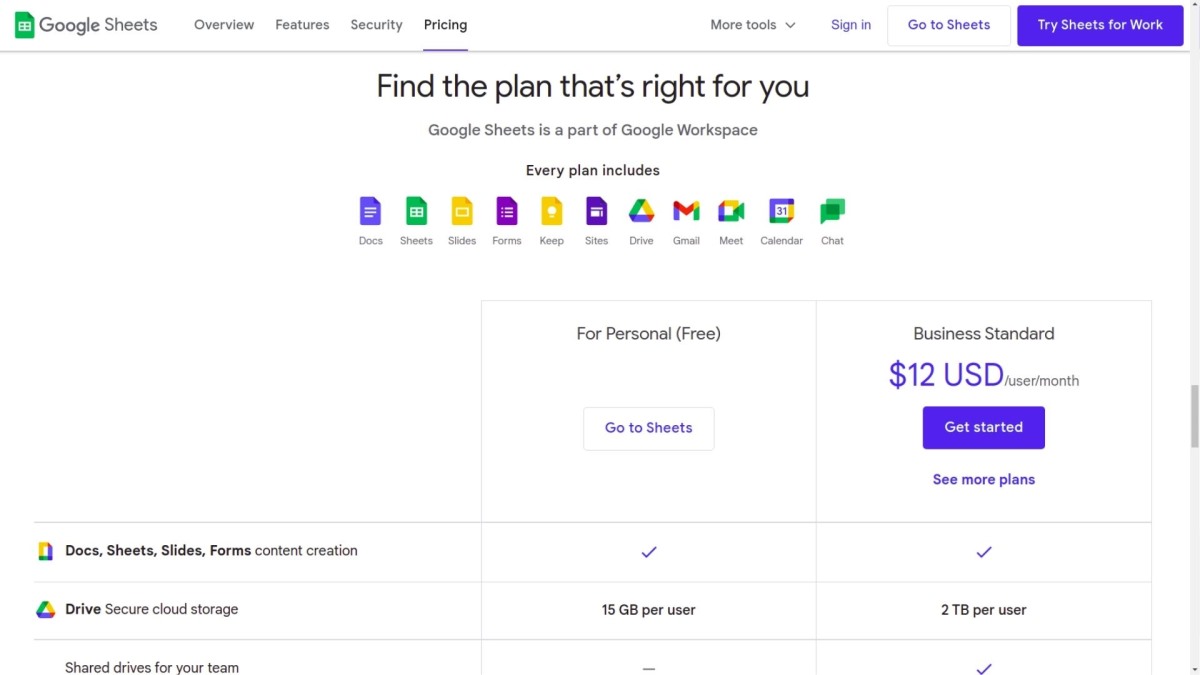
Amazingly, Google Sheets is free for users with Gmail accounts. And although Airtable has free accounts, it has limitations on things such as Blocks, team features, visual customizations, and others included in paid plans. When you’re on a tight budget, use Google Sheets first.
Game of Sheets and Tables – The Verdict
Each no code project will have varying needs. Airtable works best for interactions with the app data in visual ways. Meanwhile, Google Sheets work best for those who want simple and accessible solutions with robust integrations with other tools like Zapier. But no one limits you in trying both, right? Discover what you like best between the two no code devices and stay flexible based on your data’s need and the outcome you want to achieve from your no code projects. See what works for you from these two databases and use to your advantage these best of these both worlds have to offer.