The Ultimate Guide to Converting Figma Designs to HTML
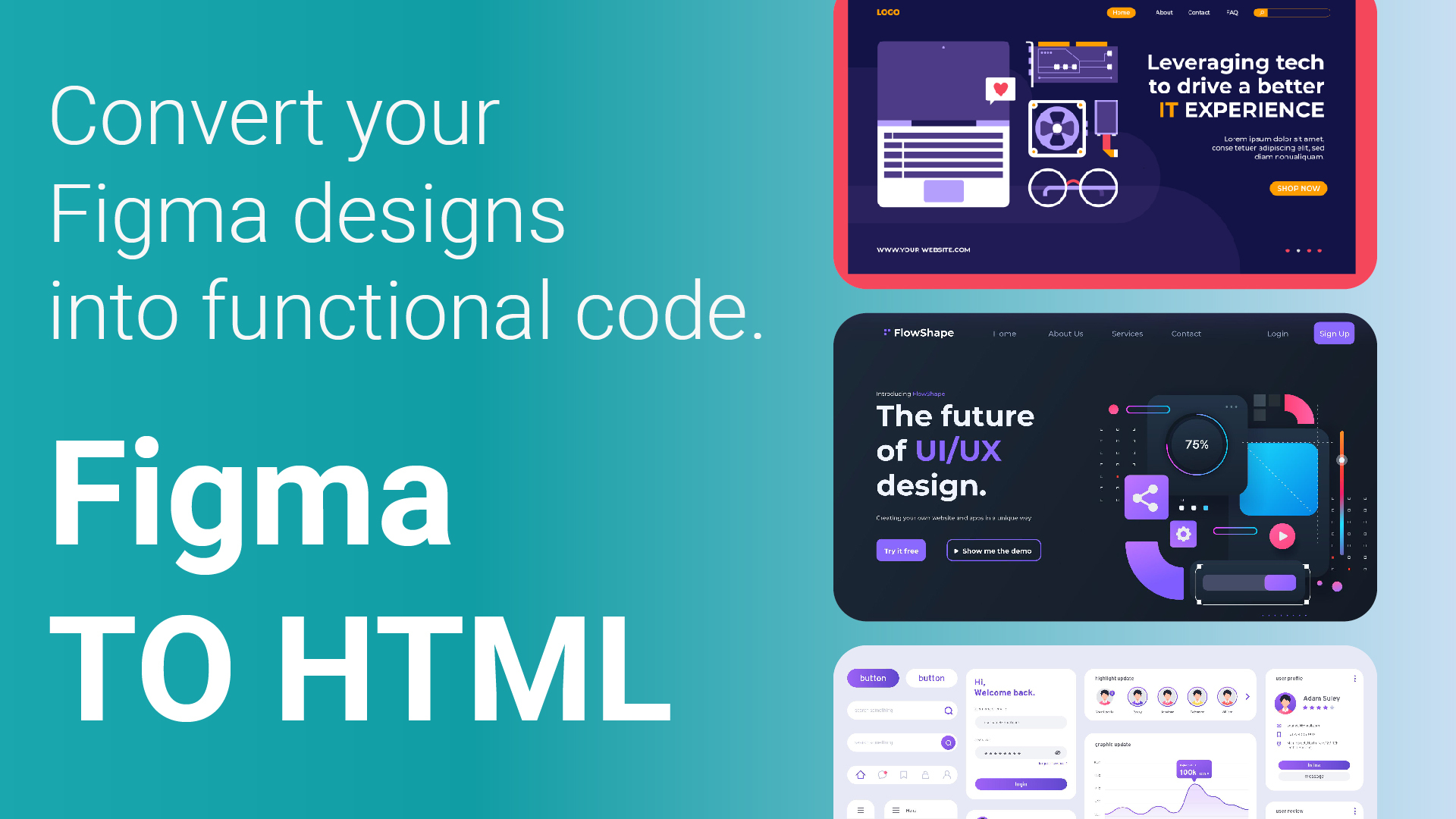
In the world of web development, turning a well-crafted design into a fully functional website is a critical process. Figma, a popular design tool, has revolutionized the way designers create user interfaces. But what happens when it’s time to bring those designs to life on the web? That’s where converting Figma to HTML comes into play. This blog will walk you through the process, provide tips, and discuss best practices to ensure a seamless transition from design to code.
Understanding the Figma to HTML Conversion Process
The process of converting Figma designs to HTML involves translating visual elements into code. This might sound daunting, but with the right approach and tools, it becomes manageable and efficient.
Step 1: Exporting Assets from Figma
The first step in converting Figma to HTML is exporting the necessary assets. This includes images, icons, and other graphical elements used in your design. Figma allows you to export these assets in various formats such as PNG, SVG, or JPEG. The choice of format depends on your specific needs, but SVG is often preferred for its scalability and lightweight nature.
Step 2: Analyzing the Design Structure
Before diving into the code, it's crucial to analyze the structure of your Figma design. This involves understanding the layout, typography, color schemes, and other design elements. By breaking down the design into sections, you can map out how the HTML and CSS will be organized.
Step 3: Writing the HTML Code
Once you have a clear understanding of the design, you can start writing the HTML code. Begin by creating the basic structure using semantic HTML tags. These tags provide meaning to the content, making your code more accessible and SEO-friendly. For instance, use <header> for the top section, <nav> for navigation, <main> for the main content, and <footer> for the bottom section.
Step 4: Styling with CSS
After setting up the HTML structure, it’s time to bring the design to life with CSS. Start by applying global styles, such as fonts and colors, before moving on to specific elements. Use CSS Flexbox or Grid to create responsive layouts that adjust to different screen sizes. Don't forget to implement CSS animations if your Figma design includes dynamic elements.
Tools to Simplify the Figma to HTML Conversion
Converting Figma to HTML manually can be time-consuming, especially for complex designs. Fortunately, there are tools available that can automate parts of the process, making it faster and more efficient.
Figma Plugins
Figma offers a range of plugins that can assist in exporting code or assets directly from your design. Plugins like "HTML to Figma" allow you to generate HTML and CSS code snippets directly from selected elements in your design. This can save time and reduce the chances of errors in manual coding.
Online Conversion Tools
There are also online tools available that can convert Figma designs to HTML automatically. Tools like Figma to HTML Converter allow you to upload your Figma file and receive HTML/CSS code in return. While these tools can be useful for simple projects, they may not always provide the cleanest or most optimized code.
Here are some automated tools for converting Figma designs to HTML :-
1. Anima - Anima is a popular plugin that allows designers to convert Figma designs to HTML, CSS, and React code. It supports responsive design, ensures clean code output, and allows easy export of design assets. Anima also provides advanced features like code components, which help integrate code with design systems.
2. Figma to HTML by Figmafy - Figmafy is a tool specifically designed to transform Figma designs into responsive HTML and CSS. It focuses on providing clean, production-ready code, making it easier for developers to integrate designs into their projects. Figmafy also supports cross-browser compatibility and offers an intuitive interface for customization.
3. TeleportHQ - TeleportHQ is an automated code generator that converts Figma designs into HTML, CSS, and even React code. It emphasizes ease of use and provides a drag-and-drop interface for further customization. The platform also offers collaboration features, making it easier to work with team members during the design-to-code transition.
4. Figma to Code by Quest AI - Quest AI provides a Figma to Code tool that converts designs into HTML, CSS, and JavaScript. It uses AI to automate the process, aiming to deliver high-quality, responsive code. The tool also integrates with popular frameworks, making it a flexible option for various development needs.
5. Pinegrow - Pinegrow is a desktop application that allows you to convert Figma designs into responsive HTML and CSS. It provides a visual editor that helps in refining the output code, ensuring it meets your exact requirements. Pinegrow also supports Bootstrap and Tailwind CSS, offering additional flexibility for developers.
6. Figma to HTML by Figma Export - Figma Export is a straightforward tool that converts Figma designs to HTML and CSS. It focuses on delivering clean and minimal code, making it suitable for projects that require simplicity and efficiency. The tool also offers customization options for tweaking the output to match specific needs.
These tools can significantly streamline the process of converting Figma designs to HTML, making it easier for designers and developers to collaborate and bring their projects to life.
Best Practices for Converting Figma to HTML
To ensure a smooth and successful conversion process, here are some best practices to keep in mind:
- Maintain Design Consistency - One of the challenges in converting Figma to HTML is maintaining consistency between the design and the final code. Ensure that your HTML and CSS accurately reflect the design specifications, including spacing, font sizes, and colors.
- Optimize for Performance - Web performance is crucial for user experience. Optimize your HTML and CSS to ensure fast loading times. This includes compressing images, minimizing CSS and JavaScript files, and using efficient coding practices.
- Test Across Browsers and Devices - Finally, always test your converted HTML code across different browsers and devices. This ensures that your design looks and functions correctly for all users, regardless of their setup.
Why Converting Figma to HTML is Essential for Web Development
Converting Figma designs to HTML is not just a technical task; it's a crucial step in bringing your digital product to life. By following the right process and using the right tools, you can ensure that your final website is not only visually appealing but also functional, responsive, and optimized for performance.
Whether you’re a designer looking to expand your skill set or a developer seeking to streamline your workflow, mastering the Figma to HTML conversion process is an invaluable asset in today’s web development landscape.
Why Converting Figma to HTML is Essential for Web Development
Converting Figma designs to HTML is not just a technical task; it's a crucial step in bringing your digital product to life. By following the right process and using the right tools, you can ensure that your final website is not only visually appealing but also functional, responsive, and optimized for performance.
For those who are looking for a way to streamline web development without needing to dive into code, DrapCode offers a no-code platform that allows you to build sophisticated web applications visually. While DrapCode doesn’t directly convert Figma designs to HTML, it empowers you to create and deploy full-fledged web apps with drag-and-drop ease, making it a powerful tool for developers and designers alike who want to focus more on the creative aspects and less on the technicalities. By integrating DrapCode into your workflow, you can efficiently bridge the gap between design and development, even if you're working without direct Figma-to-HTML conversion tools.
Whether you’re a designer looking to expand your skill set or a developer seeking to streamline your workflow, mastering the Figma to HTML conversion process is an invaluable asset in today’s web development landscape.